
57-59. Subnetting Lab 2
CCNA/DavidBombal/Lab
Assignment:
In a previous lab ( [[10 Subnetting Packet Tracer lab 1 (37min)]] ), 192.168.1.0/24 was broken up to support the subnets in this lab. Now you need to subnet the network to extend and conserve IP addresses:
1) Break up 192.168.1.64/26 to support as many subnets as possible with 8 hosts per subnet.
2) Allocate the first new subnet to site 3.
3) Manually configure all devices in the subnet.
- Router with last IP address in subnet
- Hosts from first IP address
4) Subnet the last new subnet you got from 192.168.1.64/26 with /30 masks and then allocate the subnets to the serial links. Configure the routers appropriately.
5) Verify that PCs can access cisco.com and facebook.com using their browsers
1) Break up 192.168.1.64/26 to support as many subnets as possible with 8 hosts per subnet
192.168.1.64/26
$\LARGE{2^n}$ - will show us the amount of subnets
$\LARGE{2^n-2}$ - will let us calculate amount of hosts
Because we need 8 hosts:
$\LARGE{2^1=2}$
$\LARGE{2^2=4}$
$\LARGE{2^3=8}$
$\LARGE{2^4=16}$
↓
$\LARGE{2^4-2=14}$ -> it supports 6 hosts more than what we need, but now we know that we only need 4 bits for the Host Portion. So we take this bits, and allocate for Host Portion, and the rest we move into Network Portion this will ensure that we fit 8 hosts.
At the same time, because of the formula we used $\Large{2^4}$ we now know that the amount of subnets we can have for this is 4.
192.168.1.64/26
Subnets:
192.168.1.0100 0000 = 192.168.1.64/28 -> this needs to be allocated to Site 3
192.168.0101 0000 = 192.168.1.80/28
192.168.0110 0000 = 192.168.1.96/28
192.168.0111 0000 = 192.168.1.112/28 -> this needs to be converted to /30 mask and assigned to 2 routers on a serial link. Which means we would require to subnet it to support 2 Subnets.
2) Convert last subnet into /30 mask
We need to convert Last subnet into /30 mask and assign it to the Serial Links. Which means we move 30-28=2 bits into network portion.
192.168.1.0111 0000 = 192.168.112/28
↓
192.168.1.011100 00 = 192.168.112/30 - 1st sub
192.168.1.011101 00 = 192.168.1.116/30 - 2nd sub
192.168.1.011110 00 = 192.168.1.120/30 - 3rd sub
192.168.1.011111 00 = 192.168.1.124/30 - 4th sub
We now can use the 1st subnet and assign it to the R1 and IntRouter:
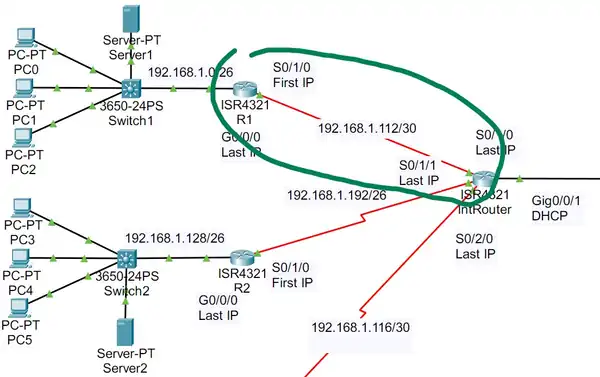
On R1 : en -> conf t -> s0/1/0 -> ip address 192.168.1.113 255.255.255.252 -> no shut -> end -> wr -> ping cisco.com
On IntRouter: en -> conf t -> int S0/1/0 -> ip address 192.168.1.114 255.255.255.252 -> no shut -> end -> wr -> ping cisco.com
Then the same on R4 and IntRouter.
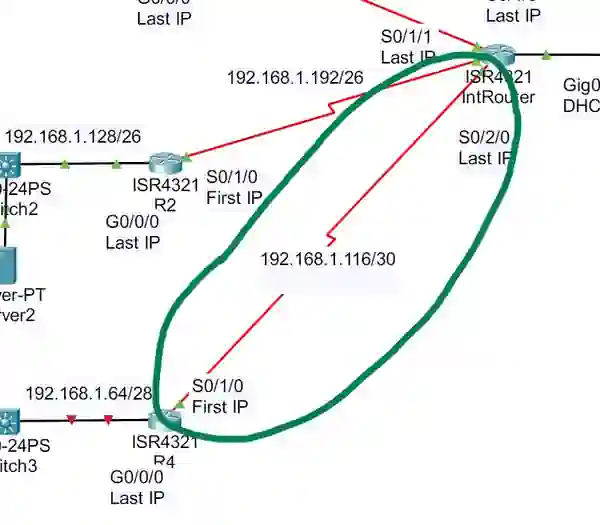
On R4 en -> conf t -> s0/1/0 -> ip address 192.168.1.117 255.255.255.252 -> no shut -> end -> wr -> ping cisco.com
On InRouter: en -> conf t -> s0/2/0 -> ip address 192.168.1.118 255.255.255.252 -> no shut -> end -> wr -> ping cisco.com
sh cdp neighbor - allows to see what the Serial Link is connected to
Now we can configure Site 3.
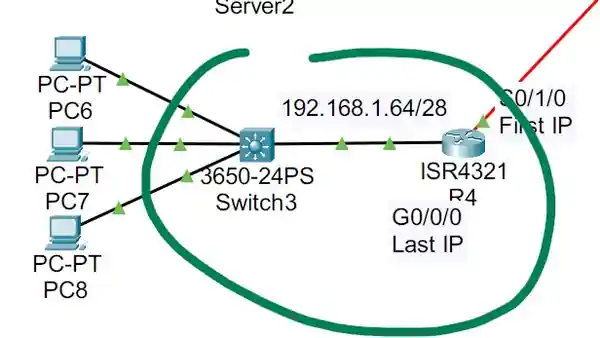
192.168.1.64/28
192.168.1.0100 0001 = 192.168.1.65/28 - 1st
192.168.1.0100 1110 = 192.168.1.78/28 - last
192.168.1.0100 1111 = 192.168.1.79/28 - broadcast
/28 = 11111111.11111111.11111111.1111 0000 = 255.255.255.240
128+64+32-16=240
On S3: en -> conf t -> g0/0/0 -> ip address 192.168.1.65 255.255.255.240 -> no shut -> end -> wr -> ping cisco.com
On R4: en -> conf t -> g0/0/0 -> ip address 192.168.1.78 255.255.255.252 -> no shut -> end -> wr -> ping cisco.com
3) Configure PCs
The beauty of DHCP in the previous Lab1 was that, we didnt have to do anything, but in this lab we have to manually enter IP, DNS server & Default gateway for each PC. Which means 4 lines of info needing to be filled in for each PC, 4x3=12!! DHCP is the best, and can save many hours of manual labour!
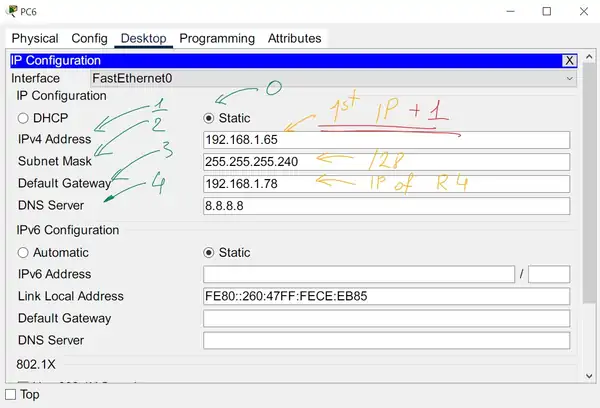
PC6:
192.168.1.65
255.255.255.240
192.168.1.78
8.8.8.8
PC7:
192.168.1.66
255.255.255.240
192.168.1.78
8.8.8.8
PC8:
192.168.1.67
255.255.255.240
192.168.1.78
8.8.8.8